
Deliverability
Google Postmaster Tools: How to Set It Up and Read It for Klaviyo
Quick answer: Google Postmaster Tools is Google's dashboard for the email you send to personal Gmail accounts. It shows your spam rate, authentication, delivery errors and whether you meet Gmail's sender rules. Gmail doesn't pass spam complaints on to Klaviyo, so this is the only place you'll see them. Setup is quick: add your root domain, verify it with a DNS record, then add your Klaviyo branded sending domain. Keep your spam rate below 0.10%.
Klaviyo will happily show you bounces, unsubscribes and opens.
What it can't show you is how many Gmail users hit "Report spam" on your emails.
Gmail simply doesn't tell Klaviyo. Postmaster Tools is how you find out.
By Emiel Dingemans, Founder of Magicianly
Updated
What Is Google Postmaster Tools?
Google Postmaster Tools is a set of dashboards that show how your outgoing email performs with personal Gmail accounts, meaning addresses that end in @gmail.com or @googlemail.com. You sign in with a Google account, add your sending domain and prove you own it.
It reports on spam rate, authentication, encryption, delivery errors and compliance with Gmail's sender guidelines. It doesn't cover Outlook, Yahoo or Apple Mail.
If part of your list is on Gmail, and it almost certainly is, this is the data you're missing. We cover the wider picture in our guide to fixing email deliverability problems in Klaviyo.
Do Ecommerce Brands Need Google Postmaster Tools?
Yes, if a decent share of your email goes to Gmail. It's the only way to see your spam rate the way Gmail sees it.
Klaviyo says this itself. Its Help Center tells every account to set up Google Postmaster Tools, because Gmail doesn't share spam complaints with platforms like Klaviyo. Without it, complaints at Gmail can creep up unnoticed until your open rates drop.
There's a second reason. If you send more than 5,000 messages a day to Gmail accounts, Google counts you as a bulk sender with extra rules, including DMARC and one-click unsubscribe. The Compliance status dashboard checks those rules for you.
No data yet? You may just not send enough. Google hides some data on low-volume days to protect users' privacy.
How Do You Set Up Google Postmaster Tools for Klaviyo?
Add your root domain, verify it with a DNS record, then add your Klaviyo branded sending domain. It takes a few minutes, plus the time your DNS provider needs to publish the record.
First, make sure you have a branded sending domain in Klaviyo and access to your DNS settings. Then:
- Sign in to Postmaster Tools with a Google account and click to add a domain.
- Add your root domain, for example brand.com.
- Verify it. Google gives you a TXT record. Add it to your DNS at the root domain and click Verify.
- Add your Klaviyo branded sending domain, for example send.brand.com. You don't need to verify it again, because the root domain is already verified.
- Add teammates if they need access. They need a Google account, and Postmaster Tools doesn't notify them, so tell them yourself.
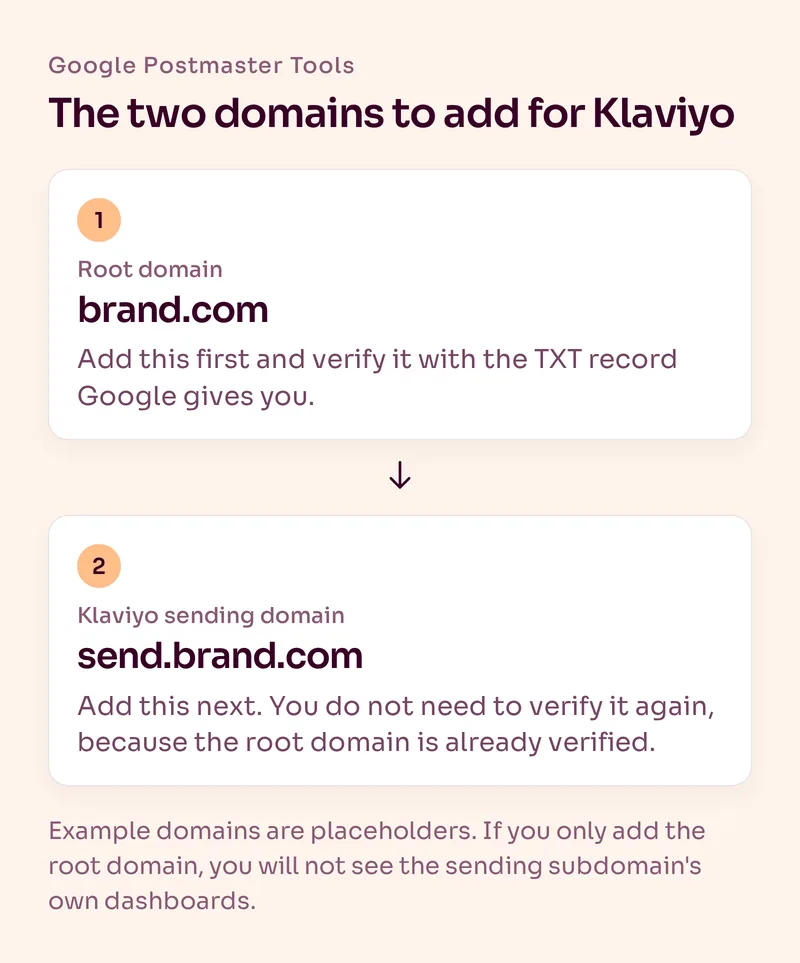
Google's own setup guide says to add the domain you use to authenticate your email, which is the DKIM (d=) domain or the SPF (Return-Path) domain. For Klaviyo that's your branded sending domain. If you only add the root domain, you won't see the sending subdomain's own dashboards.
Setting it up for a client? Ask for your own access instead of using theirs. And if an agency or former employee verified the domain years ago, check who still has access. Google says a verified owner can only be removed by deleting their google-site-verification record from the domain's DNS.
What Do the Postmaster Tools Dashboards Show?
Start with Compliance status and Spam rate, and look at the rest when one of those goes wrong.
| Dashboard | What it shows | What we'd do with it |
|---|---|---|
| Compliance status | Whether you meet Gmail's sender requirements: SPF and DKIM, DNS records, message format, encryption, user-reported spam rate, and for bulk senders DMARC and unsubscribe rules | Check it first. Anything marked "Needs work" is a to-do |
| Spam rate | The share of your messages that recipients mark as spam after they reach the inbox | Watch the trend after every big campaign |
| Feedback loop | Which campaigns recipients marked as spam, if you've set up a Feedback-ID | Find the campaign types that cause complaints |
| Authentication | The share of your email that passes SPF, DKIM and DMARC | Confirm it stays high after any DNS or platform change |
| Encryption | The share of your email sent over a TLS connection | Check it once |
| Delivery errors | The share of authenticated messages that were rejected or temporarily failed | Look here when your bounce rate jumps |
| Domain and IP reputation | A quality rating for your domains and IP addresses | Google says it will retire these two dashboards in the new version, so don't build your process on them |
Two details trip people up. The data isn't real time, so changes usually show up within 24 hours but can take longer. And the dashboards use UTC, so a spike can land on a different day than you expect.
What Spam Rate Should You Aim For?
Below 0.10%, and never reach 0.30%. That's Google's guidance in its email sender guidelines. Google also says a high spam rate gets more of your email classified as spam, and that improvements take time to show up.
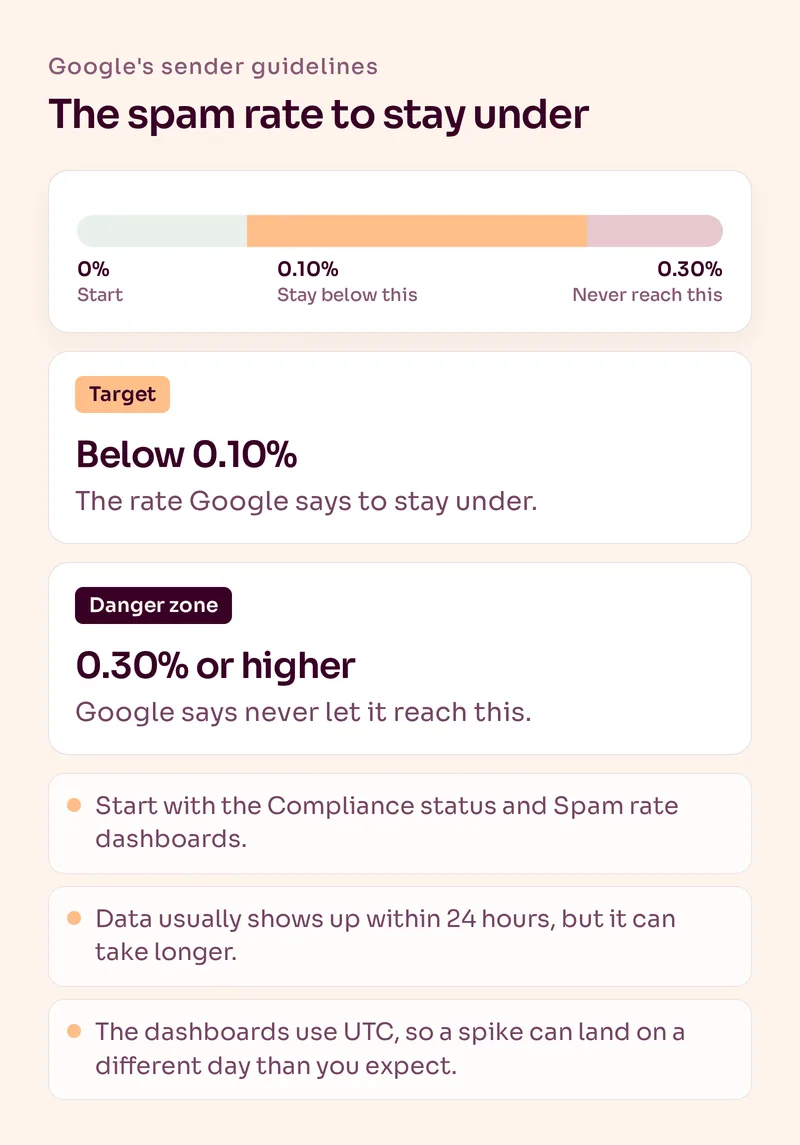
The spam rate is the share of messages that reach an engaged recipient's inbox and are then marked as spam. That has a catch. If Gmail already sends a lot of your email to spam or Promotions, fewer people see it, so fewer people can complain. Your spam rate can look great while your placement is bad.
Google says an extremely low rate can mean something is affecting the accuracy of the data. So read the spam rate next to your open rate and your Gmail Promotions tab placement. On its own, it can fool you.
What Do You Do When Your Spam Rate Is High?
Send to fewer, more engaged people and fix whatever changed. Klaviyo's advice and ours both start with who you're emailing. How the email looks comes later.
- Suppress people who never engage. Klaviyo calls this the best first step for a high complaint rate. Our Klaviyo list-cleaning process walks through it.
- Send campaigns to engaged segments. Stop mailing your whole list. See our Klaviyo segmentation strategy.
- Check what changed. A new signup source, a new popup, a higher send frequency or a bigger import can all push complaints up.
- Make unsubscribing easy. A visible unsubscribe link beats a spam report. Google also asks bulk senders for one-click unsubscribe.
- Give it time. Google says to allow up to 7 days after your changes before the rate reflects them.
The full checklist, including authentication, is in our email deliverability checklist. For the Klaviyo side, our deliverability guide shows how we work through it.
If you'd like help with the technical side, see our email marketing services.
Postmaster Tools or the Klaviyo Deliverability Tab?
Use both. They answer different questions.
The Klaviyo deliverability tab shows what Klaviyo can see: bounce rate, spam complaint rate, unsubscribe rate and performance by inbox provider. We start with the last five campaigns when we audit an account.
Postmaster Tools shows what only Gmail can tell you: the spam rate users actually report at Gmail and whether you meet Gmail's rules. Klaviyo's own Help Center explains that Gmail does not share spam complaints with it.
Why Is My Postmaster Tools Dashboard Empty or Wrong?
Usually the domain isn't verified, you added the wrong domain, or you don't send enough volume to Gmail.
| What you see | Likely cause | What to do |
|---|---|---|
| No data at all | The domain isn't verified yet | Verify the TXT or CNAME record and wait a few minutes |
| No data for your sending subdomain | You added only the root domain | Add the subdomain that signs your email, like send.brand.com |
| Gaps on some days | Your volume was too low that day | Check again after bigger sends. Google hides low-volume data for privacy |
| Spam rate suddenly drops to 0 after being high | Gmail now sends most of your email to spam, so nobody reports it from the inbox | That's a placement problem. Don't celebrate it |
| Compliance still says "Needs work" after a fix | The dashboard uses a rolling average | Check again after 7 days |
The Short Version
Set up Google Postmaster Tools before you need it. Add and verify your root domain, add your Klaviyo sending domain, and check Compliance status and Spam rate after every big campaign. Keep the spam rate below 0.10%. If it climbs, tighten who you send to before you touch anything else.
Klaviyo can't see Gmail's spam complaints. Postmaster Tools can.
Frequently Asked Questions
What is Google Postmaster Tools?
Google Postmaster Tools is a set of dashboards from Google that show how your email performs with personal Gmail accounts. It reports spam rate, authentication, encryption, delivery errors and compliance with Gmail's sender requirements.
Does Google Postmaster Tools work for Outlook or Yahoo?
No. It only shows data for email sent to personal Gmail accounts, meaning addresses that end in @gmail.com or @googlemail.com. For Outlook, use Microsoft's own tools. Klaviyo lists them in its deliverability tools reference.
Do I need Google Postmaster Tools if I use Klaviyo?
Yes. Gmail doesn't send spam complaint data to Klaviyo, and Klaviyo advises you to set up Postmaster Tools to monitor your Gmail spam rate. Klaviyo's deliverability tab shows the rest.
Which domain do I add to Postmaster Tools for Klaviyo?
Add your root domain first and verify it with a DNS record. Then add your Klaviyo branded sending domain, like send.brand.com. You don't need to verify the subdomain again.
What is a good spam rate in Google Postmaster Tools?
Google says to keep your spam rate below 0.10% and avoid ever reaching 0.30% or higher.
Why is my Google Postmaster Tools dashboard empty?
The most common reasons are an unverified domain, adding the wrong domain, or sending too little email to Gmail. Google hides some data on low-volume days to protect privacy.
Want Us to Build and Manage This for You?
Related Reading
Deliverability
How to Fix Email Deliverability Problems in KlaviyoA practical ecommerce deliverability framework covering technical setup, list hygiene, engagement and controlled audience expansion.
Read NowDeliverability
Email Deliverability Checklist for Ecommerce Brands in 2026Deliverability is mostly the result of who you send to, how often and whether they want it. Here is the checklist we work through for ecommerce email programs.
Read NowDeliverability
How to Set Up a Branded Sending Domain in KlaviyoA practical guide to setting up a branded sending domain in Klaviyo and understanding where it fits into your wider email authentication setup.
Read NowDeliverability
How to Clean Your Email List in KlaviyoA practical Klaviyo list-cleaning process that separates valuable lapsed customers from subscribers who should genuinely be suppressed.
Read Now